
Background: What is an Assessment Group?
Every time you create an Invitation, Axon automatically creates a matching Assessment Group with the same name to store the profiles completed under that invitation.
You are not limited to these auto-created groups. Certified Practitioners can also create additional Assessment Groups manually — for example, to pull together profiles from several different invitations into one group for team or group reporting. There's no limit to how many Assessment Groups you can create.
Regardless of whether a group was auto-created from an invitation or created manually, you can add additional HBDI® profiles to it at any time using either of the two methods below.
Method 1: From the Edit Assessment Group page
Use this method when you already know which group you want to add a profile to, and you have the Thinker's email address on hand.
- In Axon, navigate to Practitioners → Assessment Groups and open the group you want to edit.
- On the Edit Assessment Group page, scroll to the Add Assessment(s) By Email(s) section.
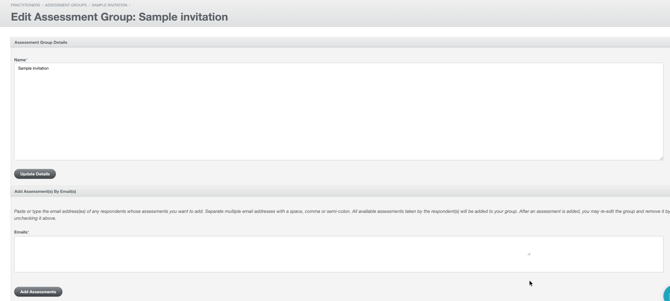
- In the Emails field, paste or type the email address(es) of the Thinker(s) whose assessments you want to add. You can separate multiple email addresses with a space, comma, or semi-colon.
- Click Add Assessments. The page will reload with the newly added assessment(s) now appearing in the group.
⚠️ Check for duplicates: All available assessments in your dataset completed by the Thinker(s) you entered may be added to the group. If a Thinker has completed the HBDI® more than once, more than one profile for that person may be added. Before saving or using the group for reporting, review the list and uncheck/remove any duplicate or outdated assessment you don't want included.
From this same page, you can also:
- Update the group's Name (under Assessment Group Details, click Update Details to save)
- Assign a new Owner for the group (enter the email address of a user who already has an Axon account, then click Assign Owner)
- Associate the group with one or more Data Roles (select from the Data Roles field, then click Update Data Roles)
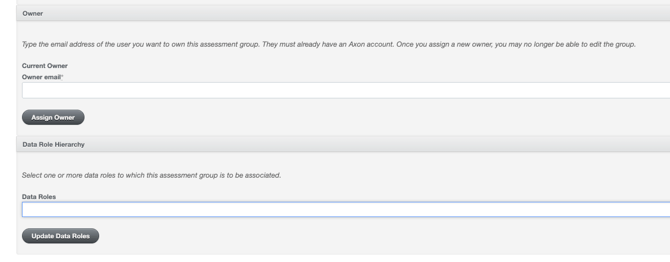
ℹ️ Note on Owner: Once you assign a new owner to the group, you may no longer be able to edit the group yourself. Only reassign ownership if you're ready to hand off management of that group.
Method 2: From the Search for Assessments page
Use this method when you're already browsing or filtering a list of assessments and want to add one or more of them to a group (existing or brand new) in the same step.
- In Axon, navigate to Search for Assessments from the menu bar at the top of the page.
- Locate the assessment(s) you want to add to a group. You can refine the results on this page by using the search filters on the right side.
- Check the checkbox to the left of each individual assessment you want to include.
- Scroll to the bottom of the page to the Assessment Group section.
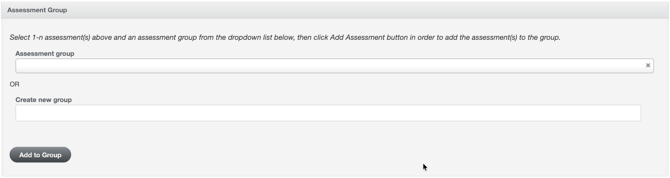
- Either:
- Search for an existing Assessment Group by name to add the selected assessment(s) to it, or
- Type a new name under Create new group to make a brand-new Assessment Group with the selected assessment(s) added.
- Click Add to Group.
You'll be taken directly to the Edit Assessment Group page for that group, where the newly added profile(s) will already appear in the list. The assessments have already been added/saved at this point — but since you're on the Edit Assessment Group page, you can make any additional changes you need (rename the group, add more assessments by email, assign an owner, or update data roles) right away.
Related Articles:
- Axon Navigation Video Tutorials — see the "Inside an Assessment Group" video for a walkthrough of the Assessment Group screens
- Organization HBDI® Export Guide
- HBDI® Report Names, Types and Samples
Need help? Please submit a ticket.