
This guide walks Certified Practitioners (CPs) and Assistants through exporting a full report of completed HBDI® assessments from your organization's database, downloading it as a CSV file, and cleaning up duplicate entries so your data is accurate and ready to use.
Step 1: Access the Assessment Data
- Log in at https://auth-st.herrmannsolutions.net/signin.
- In the top navigation, go to Practitioner Tools → Invitations & Assessments.

- From the main dashboard, navigate to the Assessments tab.

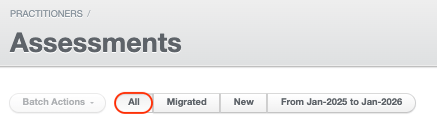
- Click the All filter button at the top of the Assessments page.
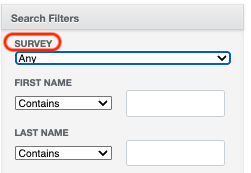
- In the Search Filters panel on the right, select HBDI in the Survey field. This limits the list to HBDI® assessments only.
Step 2: Export the Report
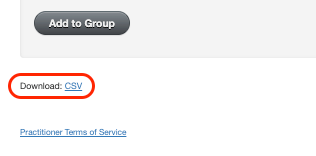
- Scroll to the bottom of the page and click the CSV button in the lower left corner to download the file.
- Open the downloaded file in Microsoft Excel or Google Sheets.
Step 3: Clean the Data - Remove Duplicates
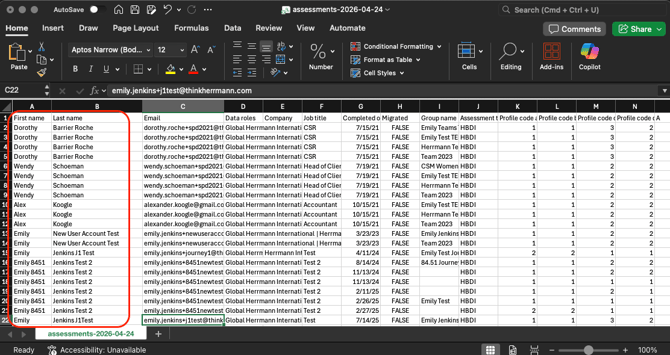
Because a Thinker can belong to multiple assessment groups, the exported report will often contain duplicate entries for the same individual. Follow the steps below to remove group-based duplicates and produce a clean, accurate list.
⚠️ Important: Understand What Gets Removed
These steps remove duplicate entries caused by multiple group memberships. If a Thinker has completed the HBDI® assessment more than once (e.g., a reassessment taken years apart), those entries will not be removed — the completion dates and A, B, C, D scores will differ, so they are treated as distinct records.
To remove duplicates:
- Select all data — Click the top-left corner square of the spreadsheet to highlight the entire sheet.
- Open the Remove Duplicates tool:
- Google Sheets: Go to Data → Data Cleanup → Remove Duplicates
- Microsoft Excel: Go to Data → Remove Duplicates
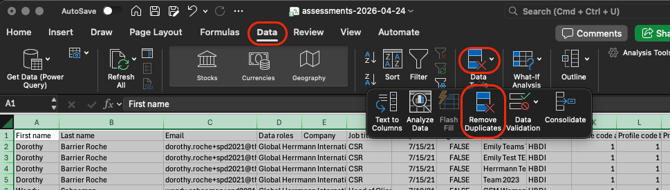
- Check the box for Data has header row.
- Click Uncheck All to clear all default column selections.
- Select only the following columns:
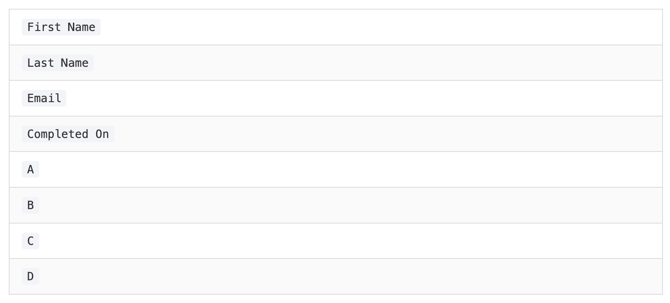
-
Click OK to remove duplicates. The system will confirm how many duplicate rows were found and removed.
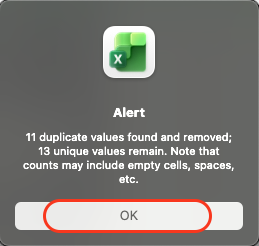
💡 Tip: Once duplicates are removed, your report will reflect one row per unique assessment completion per Thinker — giving you an accurate count of assessed individuals in your organization.