
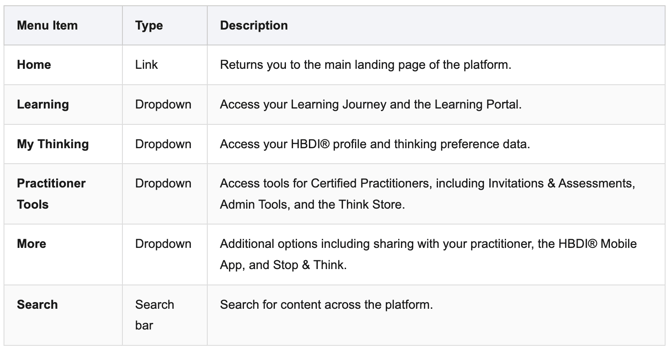
The Herrmann platform includes a top navigation bar that gives you quick access to your profile, learning resources, practitioner tools, and more. This article walks through each section of the navigation bar and describes what you'll find inside.
Overview of the Navigation Bar
The navigation bar appears at the top of every page on the Herrmann platform. It includes the following items:

Learning
The Learning dropdown provides access to your personalized learning experience and the broader Learning Portal.
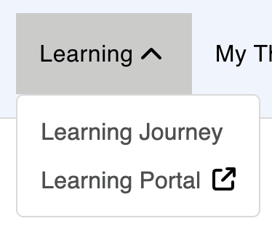
- Learning Journey — Your personalized path through Whole Brain® Thinking content and resources.
- Learning Portal — External — Opens in a new tab. Access to the full Herrmann learning library and course content.
My Thinking
🔄 Recent Update: My HBDI® Has Moved
The My HBDI® page is now located under the My Thinking dropdown menu. If you previously accessed your profile directly from the top navigation, you will now find it by clicking My Thinking → My HBDI®.
The My Thinking dropdown is where you access your HBDI® profile and personal thinking preference data.
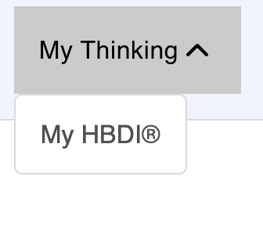
- My HBDI® — View your HBDI® profile, including your preference code, profile kite, and thinking style scores.
Practitioner Tools
The Practitioner Tools dropdown is available to Certified Practitioners (CPs) and provides access to administrative and assessment management features.
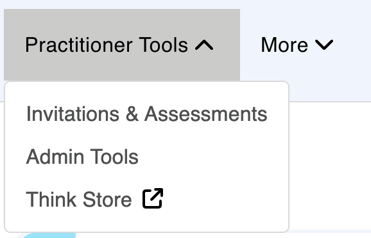
- Invitations & Assessments — Send HBDI® assessment invitations and manage assessment delivery for your participants.
- Admin Tools — Access administrative settings for managing your organization, groups, and users.
- Think Store — External — Opens in a new tab. Purchase HBDI® assessments, resources, and Whole Brain® Thinking materials.
ℹ️ Note The Practitioner Tools menu is only visible to users who have a Certified Practitioner (CP) role. If you do not see this menu item and believe you should have access, contact your organization administrator.
More
The More dropdown provides access to additional features and companion tools.
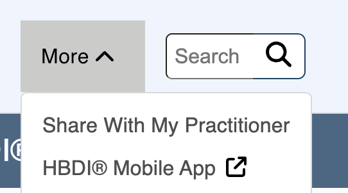
- Share With My Practitioner — Allows you to share your HBDI® profile data directly with your Certified Practitioner.
- HBDI® Mobile App — External — Opens in a new tab. Download the HBDI® mobile app to access your profile and Whole Brain® Thinking tools on the go.
Search
The Search bar in the upper right allows you to search for articles, resources, and content across the Herrmann platform. Click the search icon or type directly into the search field to get started.
Profile Menu
In the upper right corner of the navigation bar, your profile avatar (displaying your initials) provides access to account-level settings and actions.
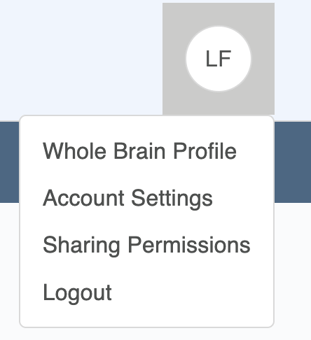
- Whole Brain Profile — View your full Whole Brain® Thinking profile, including your HBDI® results and preference data.
- Account Settings — Update your personal information, password, and other account preferences.
- Sharing Permissions — Control who can view your HBDI® profile data. See the article Managing Your HBDI® Profile Sharing Permissions for full details.
- Logout — Sign out of the Herrmann platform.