
Overview
Finding the “full headers” of an email sounds like a deep-dive into code, but in Gmail it’s actually just a few clicks away. Think of email headers as the “passport” of a message — they show every stop the email made before landing in your inbox. Here’s how to find them and share them if needed.
Step 1: Open the Email
Log in to your Gmail or Google Workspace account and open the specific email you need the headers for.
Step 2: Locate the “More” Menu
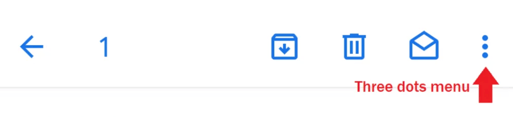
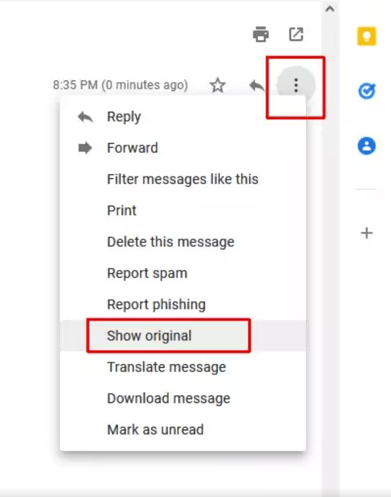
On the right-hand side of the email pane — right next to the Reply arrow — you will see three vertical dots. This is the “More” menu. Click it.
Step 3: Select “Show Original”
A dropdown menu will appear. Click the option labelled Show original.
Step 4: View the Headers
A new browser tab will open showing two main sections:
- Summary Table — This shows the basics: SPF, DKIM, and DMARC (the security checks that verify whether an email is legitimate).
- The Technical Text — Below the summary, there is a large block of plain text that may look like gibberish. This is the full header — the complete record of the email’s journey.
How to Share the Headers
If an IT person or support team has asked for these, you have two easy options:
| Option | What to do |
| Copy to Clipboard |
Click the blue Copy to clipboard button. Then paste (Ctrl+V on Windows or Cmd+V on Mac) the text into an email or chat message. |
| Download | Click Download Original. This saves the email as a .eml file on your computer, which you can send as an attachment. |
💡 Tip: If you are investigating a suspicious email yourself, copy the full header text and paste it into the Google Admin Toolbox Messageheader tool (https://toolbox.googleapps.com/apps/messageheader/). It translates the technical text into a readable timeline showing exactly where the email came from and which servers it passed through.